
Paint 3D
Paint 3D is a computer graphics application that helps you edit 2D or 3D images. Using tools like shapes, doodles, effects, and stickers, you can create new drawings and realistic visual experiences. 3D modeling sounds so challenging, but with this software, you’ll discover how easy it is to learn. If you are new to Multi-Dimensional art, then Paint 3D will be the best choice for you.
What is Paint 3D?
Paint 3D is built to create impressive artwork. This application is free of cost and allows users to edit and create unique 2D and 3D artwork projects. This is a creative tool that helps create dimensional artwork with zero knowledge of 3D painting.
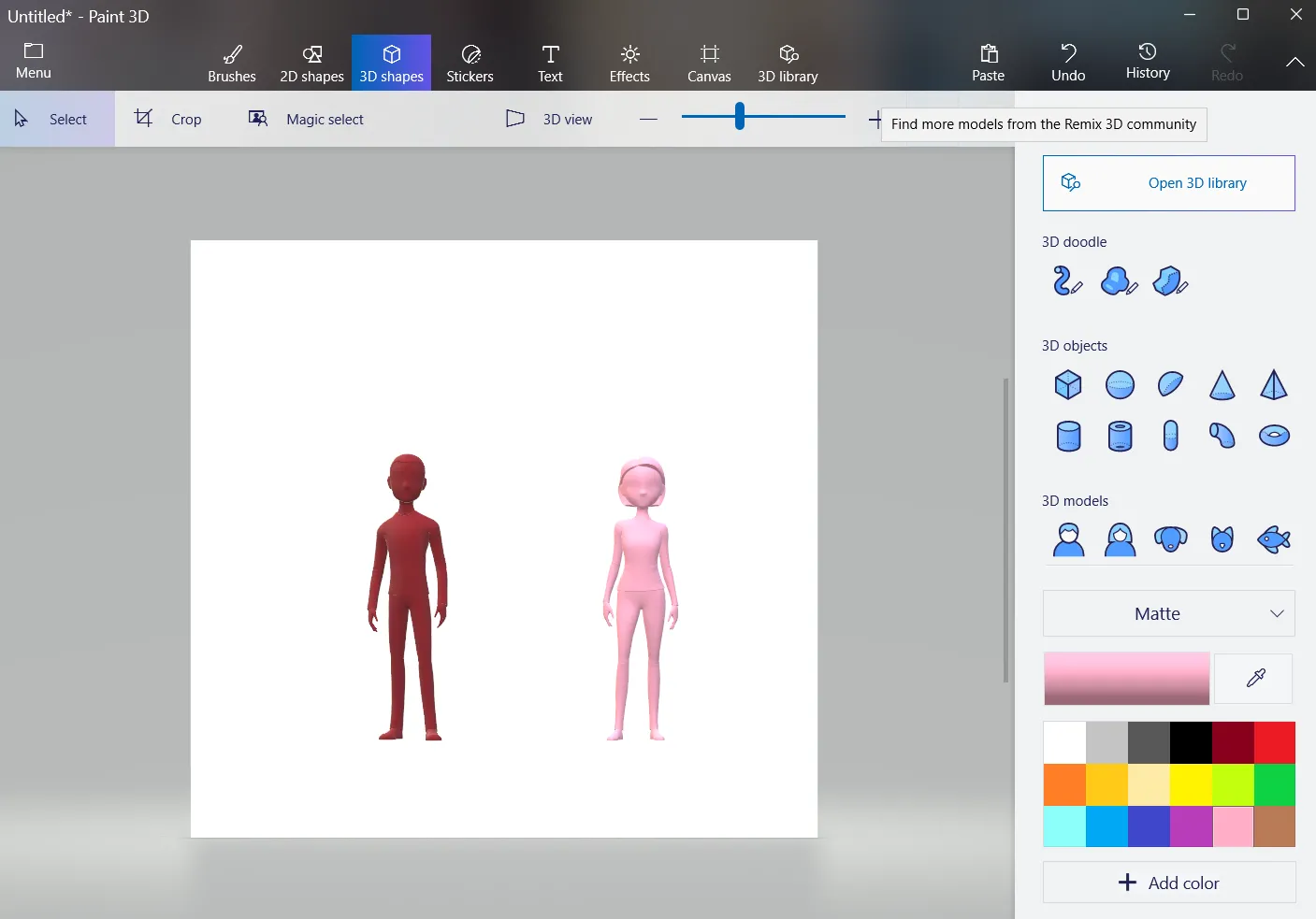
This software provides you with plenty of user-friendly tools such as Stickers, Objects, Effects, Text, and a 3D library full of 3D model collections. With the help of this software, it has become easy and fast to edit the memes, crop the images, and make the Canvas transparent.
Microsoft introduced this painting software to provide the user with both a classic painting experience and a 3D designing tool. This 3D tool is designed for beginners to basic-level users to become proficient.
Powerful Features of Paint 3D
From classic 2D sketching to easy 3D modeling, Paint 3D packs a complete creative toolkit into one free, beginner-friendly app.
A full set of brushes — marker, pencil, oil brush, watercolor, crayon, spray can, and fill — with adjustable thickness and opacity for total control.
Draw flat shapes, lines, and curves, then switch to 3D objects, doodles, and models to add real depth to your artwork.
Wrap stickers smoothly around any shape, turn images into custom textures, and adjust lighting and mood with one-click effects.
Access a ready-made collection of animals, plants, structures, and more — drop them in, then resize, recolor, and edit instantly.
Cut any object or person out of a photo in seconds and place it into a new scene — no manual erasing required.
Resize the canvas, toggle transparency on or off, and export clean PNG images — ideal for logos, overlays, and cut-outs.
Add eye-catching typography in both flat and three-dimensional styles, with full control over fonts, size, and color.
An intuitive, clutter-free interface designed for beginners — every tool is easy to find so you can focus on creating.
No subscriptions, no hidden costs, and no watermarks. Download the original Microsoft app and start creating right away.

How to Download Paint 3D?
Paint 3D System Requirements
Paint 3D is a lightweight application that runs smoothly on most modern Windows computers. Before you download, make sure your PC meets the minimum requirements below for the best creative experience.
| Operating System | Windows 10 (Creators Update or later) or Windows 11 |
|---|---|
| Processor | 1 GHz or faster (x86 / x64 compatible) |
| RAM (Memory) | 2 GB minimum, 4 GB recommended |
| Free Disk Space | Approximately 200 MB |
| Graphics | DirectX 9 or later with WDDM driver |
| Display | 1024 × 768 resolution or higher |
| File Size (Installer) | 64.5 MB |
| License | Free |
Features in Detail
Magical Color Tools:
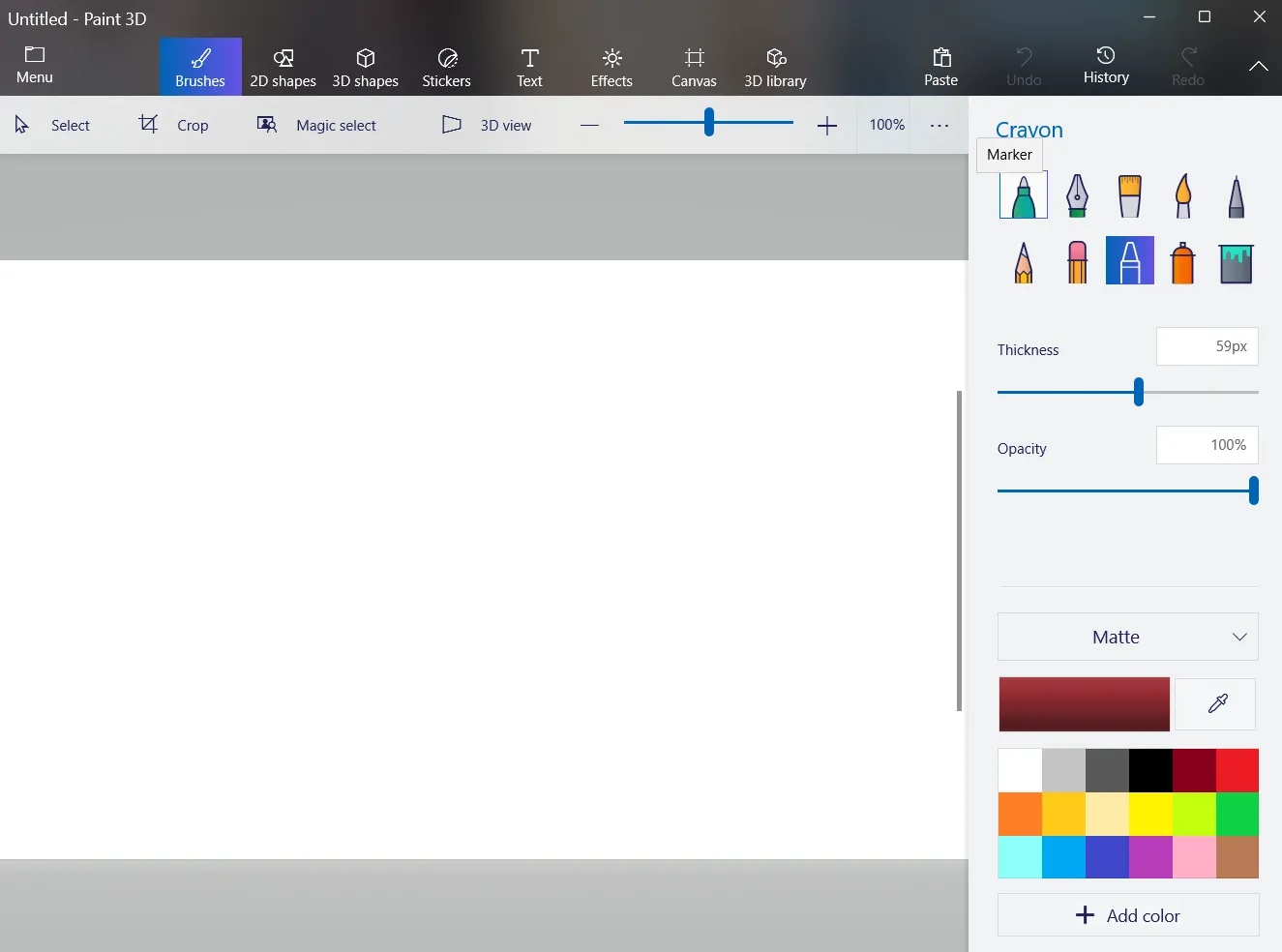
This feature includes brushes like Marker, Calligraphy Pen, Pencil, Oil Brush, Watercolor, Pixel Pen, Crayon, Spray Can, and Fill to paint your drawing. Each brush comes with adjustable thickness and opacity, giving you complete control over every stroke. You can blend colors naturally, build up layers, and create amazing pieces of art. There’s also an eraser to quickly correct any mistakes that happen along the way.
2D and 3D Object Editing:
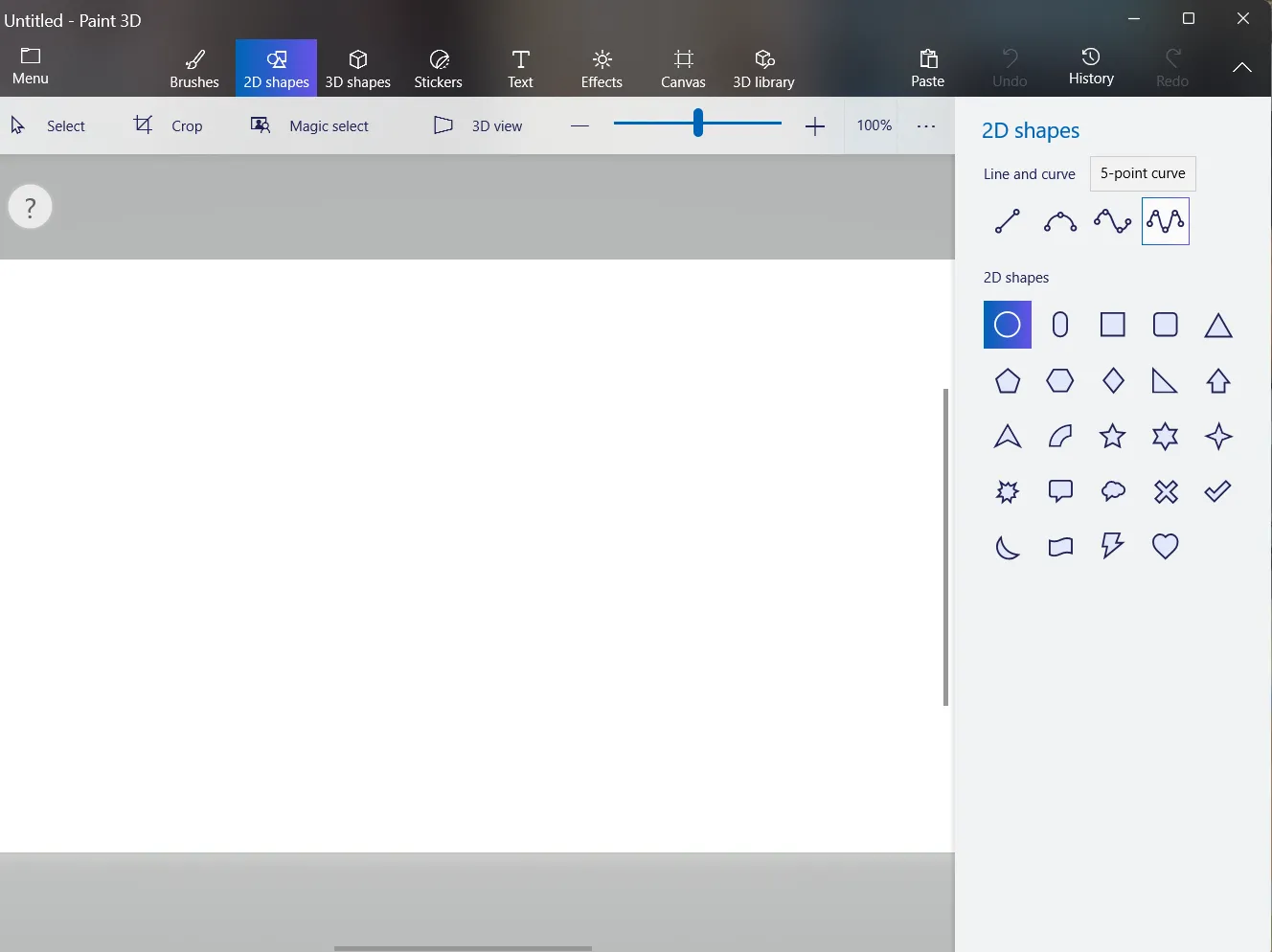
Painting and drawing rely on elements such as shapes, lines, and curves, which make it easy to build clean 2D artwork. To create dimensional designs, Paint 3D provides 3D objects, doodles, and models that you can rotate and position freely. The 3D Doodle tool even turns any closed shape you draw into a solid 3D object instantly — a simple way to add depth without complex modeling skills.
Stickers, Effects & Textures:
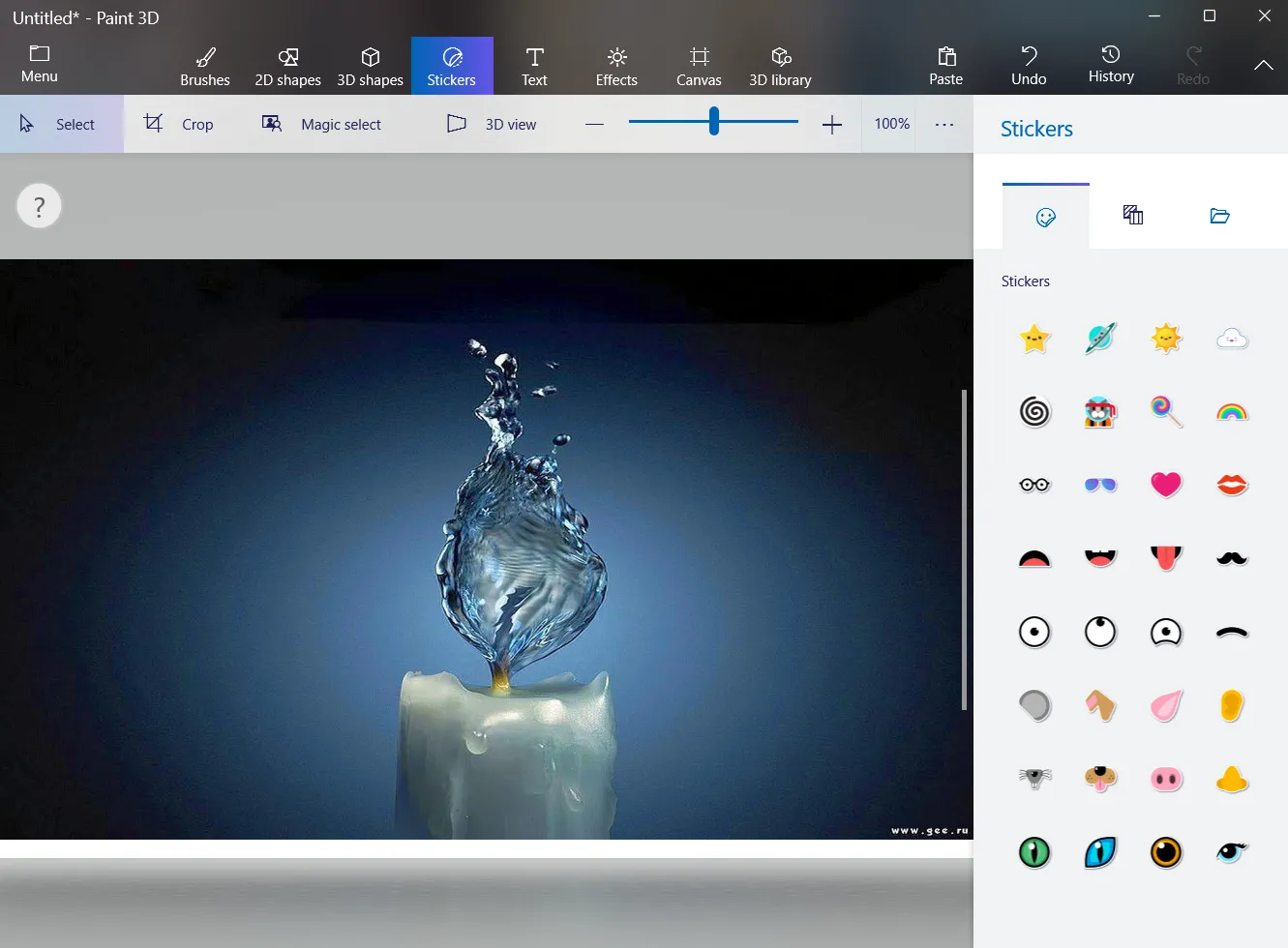
The toolbar includes a Stickers option packed with stickers, textures, and a Customize Sticker feature that converts any image into a sticker. What makes this so useful is how the sticker wraps itself smoothly around the surface of a 3D object for a realistic finish. The Effects panel lets you change the lighting and mood of your entire scene — warm, cool, bright, or dark — with a single adjustment.
Built-in 3D Model Collection:
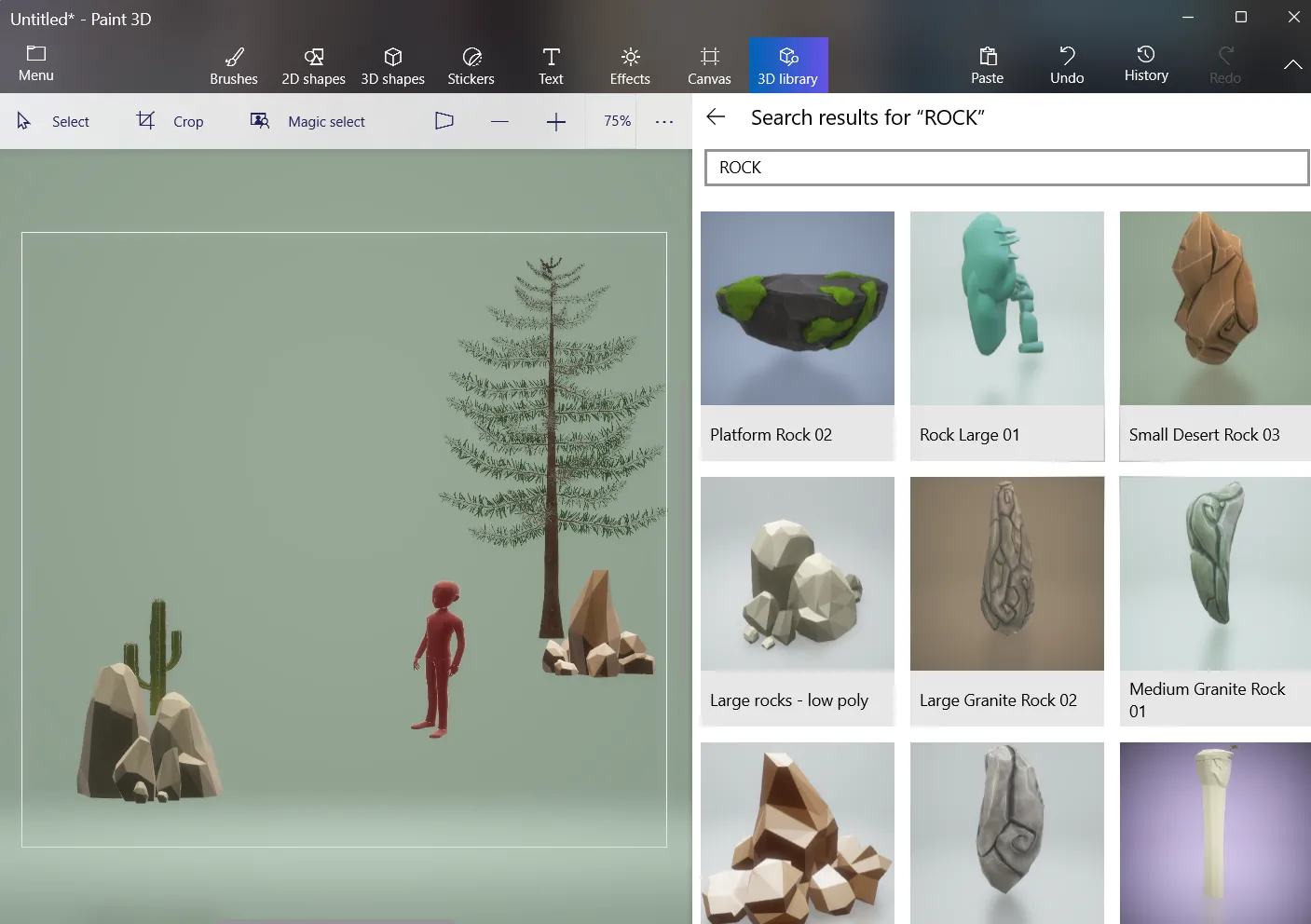
In the 3D Library you’ll find a ready-made collection of 3D models, including flowers, animals, birds, futuristic structures, and more. You can drop any model straight into your project, then resize, recolor, and edit it to fit your scene. These models save a huge amount of time and are perfect for beginners who want professional-looking results without building everything from scratch.
Magic Select Tool:
Magic Select is one of the smartest tools in Paint 3D. Instead of erasing pixel by pixel, you simply draw a box around a person or object and the app automatically detects the edges and lifts it out of the photo. You can then drop that cut-out into a brand-new scene, combining 2D and 3D content seamlessly. It’s ideal for making collages, removing backgrounds, and creating custom stickers in seconds.
Transparent Canvas:
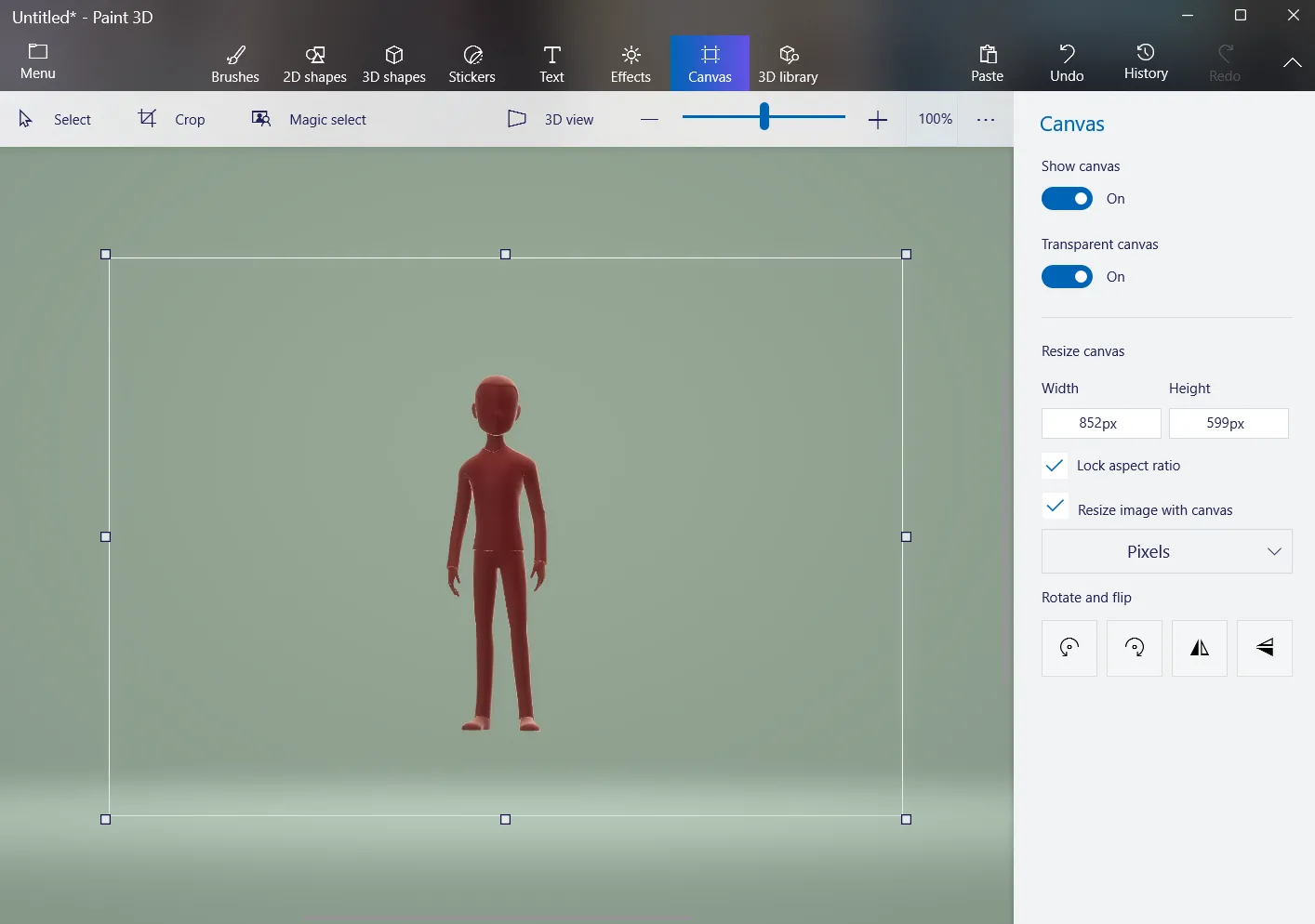
The canvas is your main workspace, and Paint 3D lets you control it completely. You can resize its width and height, toggle it on or off, and most importantly, make it fully transparent. Exporting on a transparent canvas produces clean PNG images with no background — perfect for logos, overlays, product mockups, and cut-outs you want to layer over other designs.
2D and 3D Text:
Adding text is simple and flexible. You can place flat 2D text directly on your canvas or switch to 3D text that you can rotate and position anywhere in the scene. Both styles give you full control over the font, size, and color, so your words stand out exactly the way you want. This is great for posters, titles, social media graphics, and labelling your 3D creations.
Simple Creative Workspace:
Paint 3D was designed with beginners in mind. The interface is clean and clutter-free, with every tool clearly labelled and easy to reach from the top toolbar. There’s no steep learning curve — you can open a blank canvas and start creating within minutes. This intuitive layout is exactly why it’s such a popular choice for students and first-time digital artists.
100% Free to Use:
Perhaps the biggest advantage is the price — Paint 3D is completely free. There are no subscriptions, no hidden charges, no in-app purchases, and no watermarks added to your work. You simply download the original Microsoft application and get full access to every tool and feature, making it one of the best free creative apps available for Windows.
How to use Paint 3D?
Paint 3D has no complex features, which makes the overall experience hassle-free. Below is a quick overview of the main tools to get you started.
Draw and Paint:
You can use 2D shapes to customize your design. Just drag the selected shape onto the canvas and then rotate, resize, and place it according to your preference.
Use the Brush Tool to paint them accordingly.
There is a Pencil Tool that helps you sketch freely by hand.
Add Text:
The app lets you add both 2D and 3D text to images. It provides you with multiple font options.
The background fill feature helps you highlight the text.
Stickers and Textures:
So many stickers are available in the Stickers option. There is an option to insert any image and convert it to stickers.
To use any sticker, drag and drop it on the image or model, and it will automatically wrap itself around the object.
You can also add the background, and texture to your project.
Canvas and Effect Tool:
Canvas is your workspace where you create your Projects. You can toggle the canvas on or off. It can also be turned transparent for a smooth experience.
The Effect tool gives your layout an amazing look. There are a variety of built-in effects that give your design a unique and appealing appearance.
3D Library:
This library has the latest collection of 3D models. You can use them in your project and edit them however you want. Click on any image from the library to add it to Canvas.
Want step-by-step instructions for every tool, plus tips for beginners? Read our full How to Use Paint 3D tutorial.
Screenshots


Why Choose Us?
Paint 3D is a beginner-friendly and easy-to-use MS tool. The software is beneficial for students who are new to 3D painting and want to learn the basics, as it offers a non-complex and intuitive interface. A wide range of readymade collections of 3D models is on hand in The 3D Library. You can also get the 3D view of the image on the canvas by using the 3D View option.
You will find options like Magic Select and Crop the image; features like this can be very useful at times. Now talking about another plus point, the Paint 3D download is completely free of cost.
Limitations of Paint 3D
This 3D Paint app is a Microsoft product, so this can be downloaded on Windows only.
The Paint 3D app is compatible with Windows 10 and 11. It does not support the older versions, such as Windows 7,8, and 8.1.
This application is not for advanced users.
If these limitations are a dealbreaker for you, take a look at our guide to the best Paint 3D alternatives for free and paid tools that go further.
Paint 3D vs Other Drawing Tools
Wondering how Paint 3D compares to other popular creative apps? Here’s a quick side-by-side look at how it stacks up against common alternatives for everyday 2D and 3D design.
| Feature | Paint 3D | Classic Paint | Tinkercad |
|---|---|---|---|
| Price | Free | Free | Free |
| 2D Drawing Tools | Yes | Yes | No |
| 3D Modeling | Yes | No | Yes |
| Beginner Friendly | Yes | Yes | Moderate |
| Works Offline | Yes | Yes | No (browser) |
| Stickers & Textures | Yes | No | No |
| Transparent Canvas | Yes | Limited | No |
| Best For | 2D + 3D art | Quick 2D edits | 3D printing |
Supported File Formats
Paint 3D works with a range of popular image and 3D file types, so you can import, edit, and export your projects with ease. Here’s what the app supports.
🖼️ Image Formats
Open and save your 2D artwork in widely used image types — perfect for sharing online or editing further.
🧊 3D Model Formats
Export your 3D creations to standard formats for use in other 3D software or for 3D printing.
🎬 Other Exports
Bring your scenes to life and save them in formats that capture motion or transparency.
Paint 3D Tips & Tricks for Beginners
New to Paint 3D? These simple tips will help you get comfortable with the tools and start creating better artwork right away.
Use Magic Select to cut out objects
Instead of erasing by hand, use the Magic Select tool to automatically lift a person or object out of any photo and drop it into a new scene.
Turn the canvas transparent
Switch the canvas to transparent before exporting as PNG. This is the easiest way to create clean logos, stickers, and overlays with no background.
Start with 3D doodles
The 3D Doodle tool turns any closed shape you draw into a 3D object instantly — a great way to learn 3D without complex modeling.
Adjust lighting with Effects
Use the Effects panel to change the lighting and mood of your whole scene with a single click — warm, cool, bright, or dark.
Press Ctrl + Z often
Don’t be afraid to experiment. Paint 3D supports multiple undo steps, so you can always go back if something doesn’t look right.
Frequently Asked Questions
Final Words
Paint 3D helps you build your foundation in 3D painting and modeling. You can use this application as a beginner’s guide to get the basic knowledge of 3D painting. This MS tool is convenient yet powerful in creating 2D and 3D artwork.
If you are starting to learn dimensional art as a hobby or want to make your career in this field, Paint 3D is the best tool for you.